Before you ask your Fitbit Edge to lean on your phone’s GPS, make sure the phone is actually coming along. Engadget’s Nov. 14 settings guide says that change may stretch battery life—but leaves you without location data if you head out with just the tracker. Source
The guide, by Roger Fingas, recommends several optional adjustments for Edge owners, including quieter coaching, more informative clock faces and fewer accidental button presses. None is strictly necessary. The useful choices depend on what’s bothering you, not on completing a settings-menu scavenger hunt. Source
Phone-only GPS means bringing the phone
According to Engadget, the Edge’s device settings in Google Health let you use your phone for location data instead of the tracker’s built-in GPS. The guide doesn’t quantify the possible battery savings. Source
For workouts where the phone doesn’t always come along, Engadget recommends Dynamic GPS instead. The guide says it switches to the Edge’s built-in GPS when the phone is absent. Source
The always-on screen has expensive tastes
Engadget also recommends leaving Always-On Display off when battery life matters. It cites Google’s estimate that enabling the feature reduces maximum battery life from seven days to around two, though real-world runtime could be lower, particularly with onboard GPS. That’s a steep cover charge for keeping the display awake. Source
Turn down the unsolicited coaching
If the interruptions are the problem, Engadget suggests disabling Coach Insights. Its instructions are to open Google Health and follow [Profile icon] > Google Health Settings > Coaching > No Coach Insights. Source
The guide says this stops unprompted summaries and advice from appearing on your phone during the day. Sometimes the desired coaching style is “I’ll ask.” Source
Make the face—and button placement—work for you
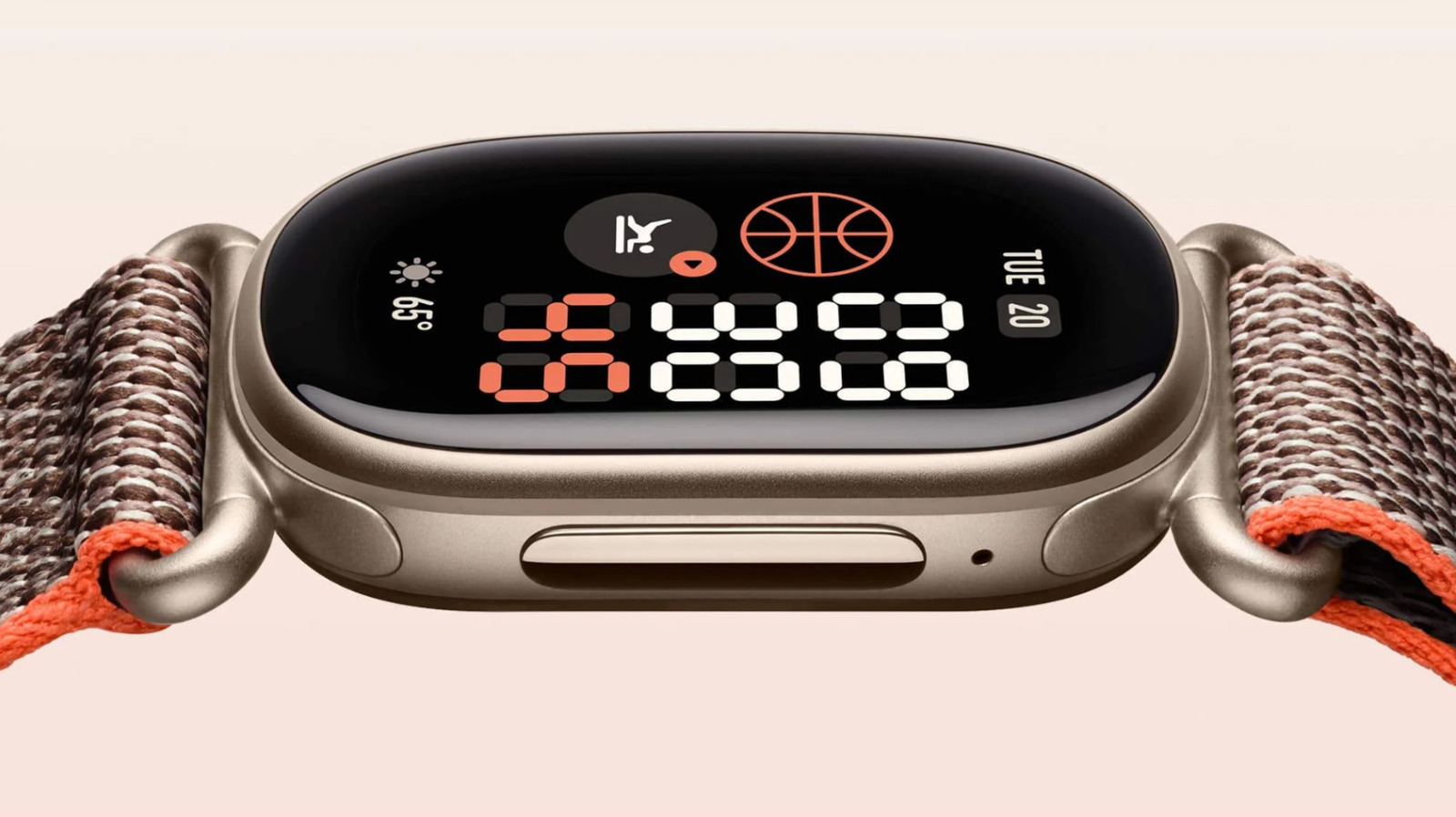
For more useful information at a glance, Engadget recommends exploring clock faces. Its guide says Modular faces support up to four or five tiles for information such as heart rate and calorie burn. Source
The guide gives this installation path: Google Health > Connections > [your device] > Watch faces > Clocks. Choose a face and tap Install. According to the guide, tapping and holding the Edge’s screen lets you switch between installed faces. Source
Tracker Orientation, also under device settings in Google Health, changes whether the physical button sits to the left or right of the displayed content. Engadget suggests trying it if you encounter accidental presses. Fingas says his deadlifting straps can bump a tracker’s buttons. Source




Comments